Telegram Business, configured right
A complete walkthrough of every Telegram Business setting that matters — opening hours, quick replies, away messages, intro, location, and the chatbot integration that ties it together.
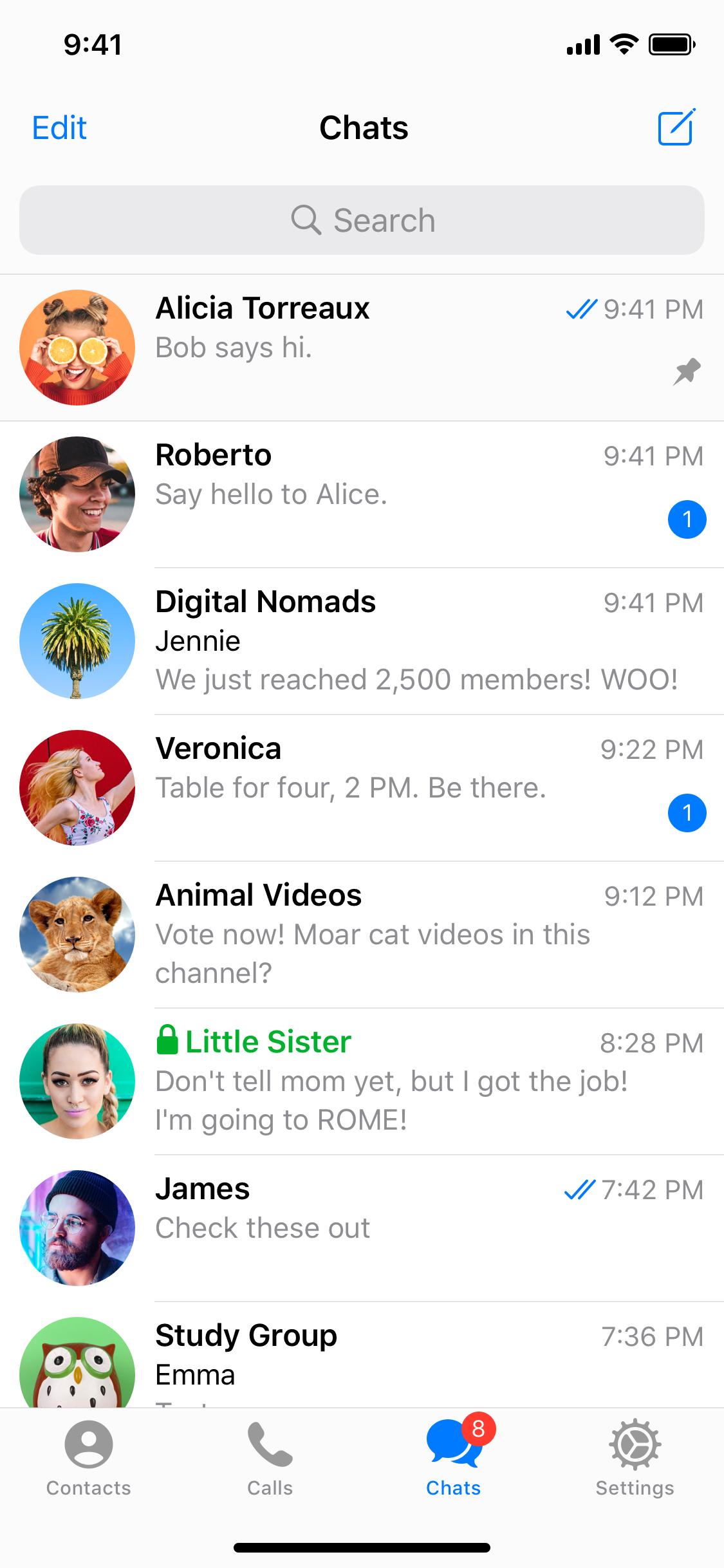
Telegram Business turned the messenger into a real lightweight CRM in 2024. By 2026 most operators are still misconfiguring it. Here is the order of operations to get every feature working in under 30 minutes.
Turn it on and pick a phone strategy
Settings → Telegram Business. Decide first whether to use your personal number or a dedicated SIM. Personal works for solo founders. A dedicated number scales to a team and avoids 2FA collisions later.
If you start personal and migrate later, you can move username + chats — but not message history. Decide once.
Set the public profile
Business → Location — adds a small map preview to your bio. Good for local services, irrelevant for SaaS. Business → Opening Hours — shows “Open” / “Closed until 9 AM” in your contact card. Set timezone correctly; Telegram does the math for visitors. Business → Intro — replaces the empty state when someone opens an empty chat with you. Two lines + sticker. Treat it as a one-liner pitch + clear next step.
Wire Quick Replies
Quick Replies are saved messages with /shortcut triggers, including media and formatting. Set up these three on day one:
/welcome— the message you send manually when a new lead writes in./pricing— one-pager with prices, links to checkout, and a Mini App button if you have one./booking— link to your scheduling tool with timezone reminder.
Type / in any chat to fire one. They sync across all your devices.
Configure Greeting + Away Messages
Greeting auto-fires once when someone messages you for the first time, ever. Make it warm and ask one qualifying question — don’t dump your whole sales pitch.
Away auto-fires when you’re offline by your defined schedule (use the opening hours you already set). Tell them when you’ll respond, and link to a self-serve resource.
Both messages support markdown links. Both can be turned off for specific contacts (your existing customers should never see “I’ll be back at 9 AM” — exclude them).
Connect a chatbot to your account
This is the killer feature most people miss. Business → Chatbots. Paste a bot username and grant it permission to read and reply on your behalf.
You can build the bot yourself with the Bot API (getBusinessConnection, sendMessage with business_connection_id), or use a no-code tool like Make, n8n, or Salebot. Common automations:
- Tag every new contact with their inbound source.
- Auto-reply with
/pricingwhen a message contains keywords like “rate” or “quote”. - Forward every contact to a Notion/Airtable CRM.
- Use Claude/GPT to draft a reply you approve before sending.
Test the whole loop with a friend
Have a Telegram contact who has never messaged you write in from scratch. They should see:
- Your intro (in the empty chat).
- Your greeting message.
- (Outside hours) your away message.
- Your bot’s first AI-drafted suggestion arriving for your review within 2 seconds.
If any of those four is missing, fix it before you start driving traffic to your handle.
What to skip
- Custom emoji status as a “feature” — it’s branding, not a workflow. Use it, but don’t spend time optimizing it.
- Stickers for replies — they’re fun in
/welcomebut slow you down in real conversations. - “AI auto-reply” without a human-in-the-loop. Your bot should draft, you should send, until you have 100+ confident automations.
Read next
Connect Claude to Telegram Business — supervised AI replies
A working architecture for routing your Telegram Business inbox through Claude, with the user kept firmly in the loop. Code, prompts, costs, and what to do when Claude is wrong.
The Telegram glossary — every term that matters in 2026
A reference glossary of every Telegram concept, API surface, and product feature you need to know — with one-sentence definitions and direct links to the official docs.
Ship a Telegram Mini App in 48 hours
A practical, end-to-end walkthrough — from BotFather to deploy — for shipping your first Telegram Mini App with auth, payments, and a real distribution plan.